
 Αυστραλία
 Αυστρία
 Βέλγιο
 Βουλγαρία
 Γαλλία
 Γερμανία
 Δανία
Δανία Ελβετία
 Εσθονία
 Ηνωμένα Αραβικά Εμιράτα
 Ηνωμένες Πολιτείες
 Ηνωμένο Βασίλειο
 Ισπανία
 Ιταλία
 Καναδάς
 Κατάρ
Κατάρ Κροατία
 Λεττονία
 Λιθουανία
 Λουξεμβούργο
 Νορβηγία
 Ολλανδία
 Ομάν
Ομάν Ουγγαρία
 Ουκρανία
 Περού
Περού Πολωνία
 Πορτογαλία
 Ρουμανία
 Σαουδική Αραβία
 Σερβία
 Σλοβακία
 Σλοβενία
 Σουηδία
 Τουρκία
 Τσεχία
 Φινλανδία
 Χιλή
Χιλή
Μεταφόρτωση λίστας υλικών
Εάν θέλετε να ανεβάσετε μια λίστα υλικών στο ηλεκτρονικό κατάστημα, μπορείτε να το κάνετε πολύ εύκολα. Θα εξοικονομήσετε πολύ χρόνο, καθώς μπορείτε να προσθέσετε όλα τα προϊόντα στο καλάθι αγορών σας ή μια αποθηκευμένη λίστα με το πάτημα ενός κουμπιού.
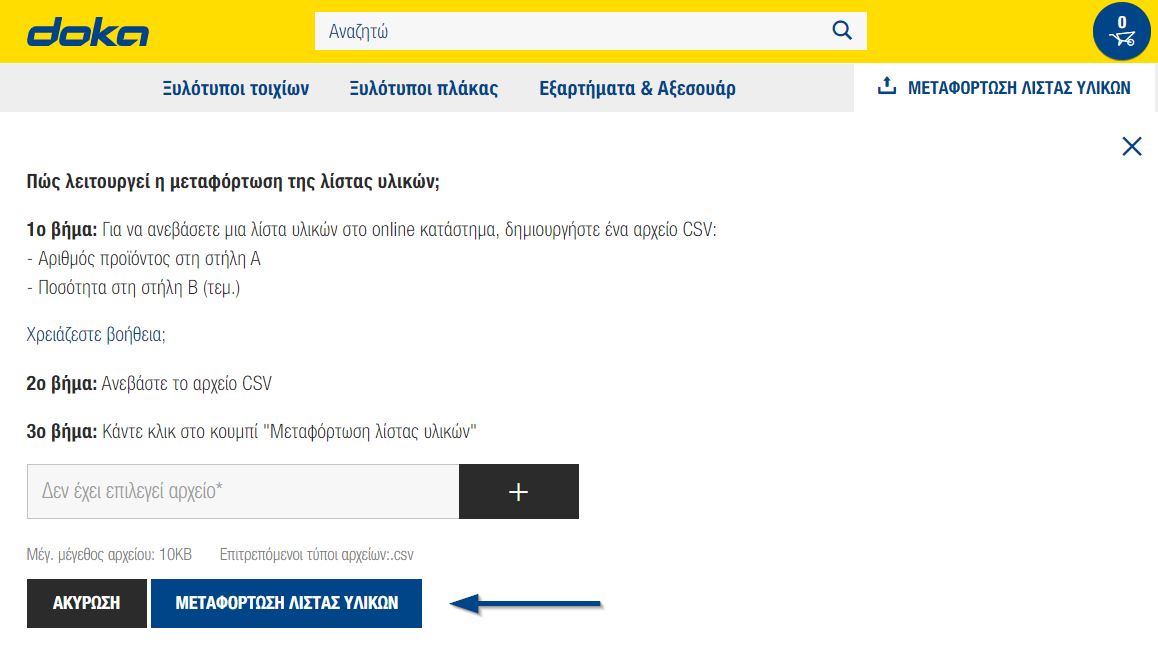
Πώς λειτουργεί;
1. βήμα: Δημιουργία της λίστας υλικών
Η λίστα υλικών σε μορφή .csv πρέπει να αποτελείται από δύο στήλες: Η στήλη Α περιέχει τον αριθμό του αντικειμένου, η στήλη Β την επιθυμητή ποσότητα. Η ποσότητα πρέπει να αναφέρεται σε τεμάχια.
Ένα αρχείο .csv μπορεί να δημιουργηθεί με το Microsoft Excel, για παράδειγμα.
Η λίστα τότε μοιάζει ως εξής, για παράδειγμα:
189011000,100
187211000,250
586270000,160
Προσοχή: Μην χρησιμοποιείτε επικεφαλίδες στηλών.
Πώς μπορώ να αποθηκεύσω μια λίστα του Excel ως .csv;
Για να αποθηκεύσετε μια λίστα του Excel ως .csv, πρέπει να εκτελέσετε τα ακόλουθα βήματα:
- Στο Microsoft Excel, επιλέξτε "Αρχείο"-"Αποθήκευση ως".
- Επιλέξτε την επιθυμητή θέση αποθήκευσης
- Πριν από την τελική αποθήκευση, ο τύπος αρχείου πρέπει να αλλάξει σε .csv.
Μπορείτε να βρείτε λεπτομερείς οδηγίες εδώ.
Το ακόλουθο παράδειγμα αρχείου σε μορφή .csv ανοίγεται στο Excel και αποθηκεύεται ξανά ως .csv: Λήψη αρχείου παραδείγματος
2. βήμα: Μεταφόρτωση λίστας υλικών
Το κουμπί για τη μεταφόρτωση της λίστας υλικών βρίσκεται κάτω από το εικονίδιο του καλαθιού αγορών. Κάντε κλικ σε αυτό για να ανοίξει το μενού. Το αρχείο μπορεί να επιλεγεί με το κουμπί "+".