Australia
 Austria
 Belgium
 Bulgaria
 Canada
 Chile
Chile Croatia
 Czech Republic
 Denmark
 Estonia
 Finland
 France
 Germany
 Greece
 Hungary
 Italy
Italy Latvia
 Lithuania
 Luxembourg
 Norway
 Oman
Oman Peru
Peru Poland
 Portugal
 Qatar
Qatar Romania
 Saudi Arabia
 Serbia
 Slovakia
 Slovenia
 Spain
Spain Sweden
 Switzerland
 Türkiye
 Ukraine
 United Arab Emirates
 United Kingdom
 United States
Upload Material List
If you wish to upload a material list into the online shop, you can do this very easily. You will save a lot of time, as you can add all items to your shopping cart or a saved list with one click of a button.
How does it work?
1st step: Create Material List
The material list, in a .csv file format, should consist of two columns: the article number in column A, the required quantity in column B. The quantity has to be entered as per piece.
You can use programs like Microsoft Excel to create a .csv file.
An example list could look like this:
189011000,100
187211000,250
586270000,160
Attention: Please do not use any headers above the columns.
How can I save an Excel list as .csv?
In order to save an Excel list as a csv-file take the following steps:
- 1. In Microsoft Excel: click "File" and "Save as"
- 2. Select a folder to save it in
- 3. Before finally clicking "Save", the file format has to be changed to .csv
You can find detailed instructions here.
The following example file in csv-format can be opened in Excel and saved again as .csv: Download example file
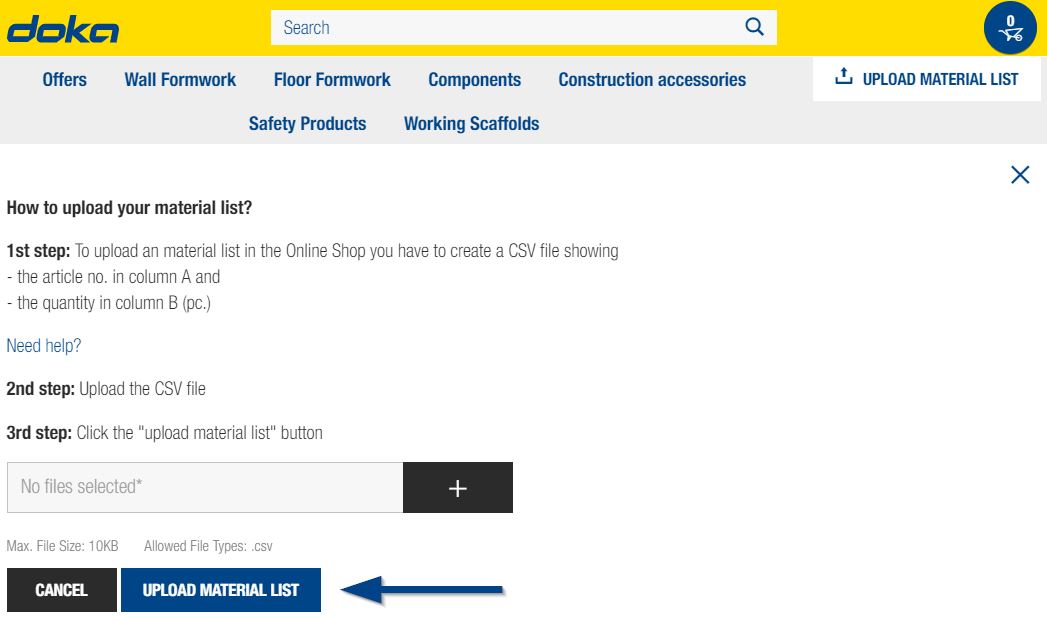
2nd step: Upload Material List
The button to upload the material list is below the shopping cart symbol. Click on it to open a menu. There you can select your file with the "+" button.